


Vexa: AI Video & Photo Maker
3.79.00 Reviews
App Specs
- Version
- 1.0.1
- Updated On
- License
- Free
- Downloads
- 100,000+
- Developer
- Clicker Technology
- Categories
- Lifestyle
- Platform
- Android
Screenshots
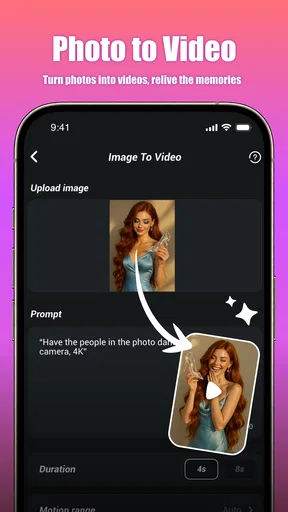
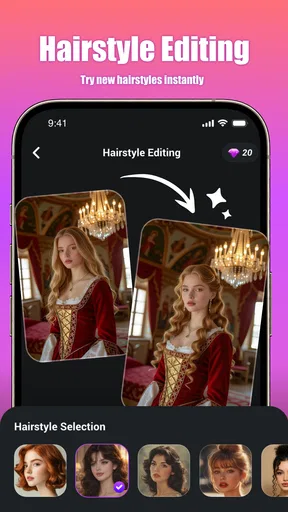
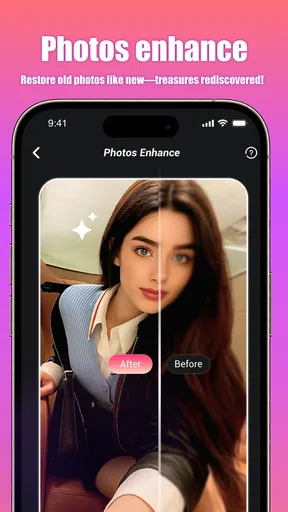
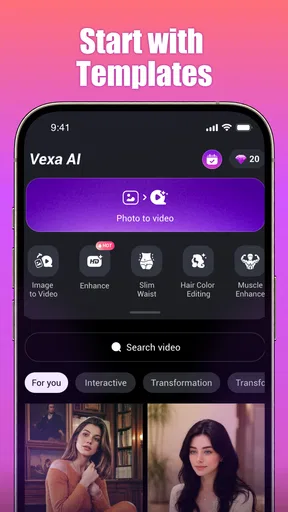
 Analysis by AppCompare
I approached Vexa: AI Video & Photo Maker as a quick creative tool for turning ordinary photos into short, animated-looking visual pieces. Its appeal is easy to understand: instead of learning a full video editor, I can start with a still image and explore cinematic motion or creative effects with much less effort. That makes it a lifestyle app rather than a serious production suite, and the difference matters when deciding what to expect.
In everyday use, the app feels aimed at people who want something shareable from a photo without spending a long time arranging clips, keyframes, sound, and transitions. I can imagine using it for a travel memory, a birthday image, a profile post, or a small visual message to a friend. The results are most useful when I treat them as quick creative experiments, not as finished commercial videos.
Clicker Technology is the developer behind the app, which is available for free and carries a Mature 17+ content rating. The current release is version 1.0.1, and it runs on Android 7.0 or later. That broad operating-system reach is convenient for people using older Android phones, although the quality of the experience will still depend heavily on the phone’s camera library, available storage, processing ability, and network connection.
How Vexa feels when the connection becomes part of the workflow
I find that a reliable connection changes how I plan a Vexa session: it is worth choosing the photo and the purpose before I start, rather than opening the app with no clear idea and waiting through trial and error. That small bit of preparation also helps me decide whether the result is worth keeping or whether a familiar editor would be quicker. Next, I’d look at how the finished clip fits into the way I want to share or save it.
The first creative step is simple, but the network can shape the wait
The most attractive part of Vexa is the short path from a photo to an animated result. I do not need to begin by building a timeline or choosing from a complicated editing workspace. The concept is closer to selecting an image, choosing a visual direction, and letting the app create a moving interpretation. That simplicity is exactly why the app can be appealing on a phone.
At the same time, AI-driven creation is not the same as applying a basic filter. The process may involve sending an image through a service before the finished result appears, so a weak connection can turn a quick idea into a waiting exercise. I would avoid starting an important creation while moving between unstable mobile signals. A reliable Wi-Fi connection is the safer choice when the image matters or when I am working with a large original photo.
This connection issue changes how I judge the app. If I expect instant editing like cropping, brightness correction, or a local color filter, Vexa may feel slower than familiar photo tools. If I see it as a creative generator that needs time to interpret an image, the delay is easier to accept. The useful question is not simply whether the app is fast, but whether the result is distinctive enough to justify the wait.
Worth Reading Before You Choose

Flipboard Shows What News Apps Must Do Beyond the Feed

Switching to Android Auto Means Rethinking Your Driving Routine

Google Calendar Makes a Crowded Week Easier to Manage

Ludo King Makes the Most of the Minutes Between Plans

Baby Panda World Brings Quick Play to Modern Phones, but Its Game Library Feels Busy

ESPN’s Live Game View Makes Following Close Games Easier
A realistic phone scenario
Imagine I am sitting at a café after a day trip and have one good landscape photo. I want to send it to a friend as something more interesting than the original image. Vexa makes sense here: I can try a motion effect, review the generated clip, and decide whether it communicates the atmosphere better than a still photo. Because the idea starts from one image, I do not need to sort through a complete camera roll or prepare a full story.
The same scenario also shows the limitation. If the café connection is congested, I may spend more time waiting than creating. If the generated movement makes the landscape look unnatural, I still need the original photo and another editing option to finish the job. I would therefore keep the source image untouched and treat each generated version as a separate experiment rather than replacing the original.
Why it suits short mobile sessions
Vexa is better suited to small bursts of creativity than to long editing sessions. I can open it with a single idea, test a visual treatment, and stop once I have something usable. That is a good fit for commuting, preparing a quick social post, or making a personal greeting when I do not want to sit at a desktop editor.
It is less convincing for a project that needs a carefully controlled sequence. A conventional mobile editor gives me more direct authority over timing, cuts, text placement, audio, and the exact order of scenes. Vexa’s strength is the transformation of a photo, not the complete management of a multi-part production.
What to do when a generation fails
Creative automation is rarely perfect on every attempt. A photo with a clear subject and a simple composition is usually a better starting point than a crowded image with several people, tiny details, or confusing depth. I found that preparing the image before sending it through an effect is more useful than repeatedly blaming the generator. A crop that gives the main subject room to move can make the final animation feel more intentional.
My practical recovery routine would be to keep the original, check the connection, retry with a simpler image, and avoid changing several variables at once. If the first attempt looks wrong, I want to know whether the problem came from the photo, the selected effect, or the network. Making one change per attempt keeps the process manageable.
This is also where Vexa differs from a standard filter app. A filter normally produces a predictable visual adjustment, while AI motion can interpret the image in a less controlled way. That unpredictability can be the fun part, but it can also create results that are unsuitable for a serious post. I would review the entire clip before sharing it rather than trusting the preview immediately.
Handling interruptions without losing the idea
Mobile work is full of interruptions: a call arrives, the screen locks, the connection changes, or another app needs attention. I would not begin a time-sensitive creation without first making sure the source image is safely stored on the phone. If a generation is interrupted, having the original available makes recovery much easier than trying to recreate the same idea from memory.
It is also sensible to avoid starting several demanding experiments at once. One finished result gives me a clear reference point, while a queue of uncertain attempts can make it difficult to know which version completed successfully. This is a small habit, but it reduces frustration when the network or the phone behaves unpredictably.
Data-conscious habits matter more with personal photos
Because the app is designed around photos and AI-generated video, I would be selective about the images I use. Personal pictures can contain faces, locations, documents, children, or other details that I may not want to process casually. I would choose a less sensitive image when testing an effect for the first time, especially if I am only exploring what the app can do.
I would also avoid using mobile data for repeated trials unless I have plenty of allowance. Large photos and generated video can be inconvenient on a limited plan, and repeated experimentation may consume more data than a single successful creation. Preparing a smaller copy of a photo can be a reasonable compromise when the final result does not need maximum resolution, although I would keep the original separately for anything important.
There is a useful trade-off here: a high-quality source can give the effect more detail to work with, but it may take longer to transfer and process. For a casual message, a carefully cropped, moderate-size image may be more practical than the largest file from the camera. For a memory I plan to keep, I would preserve the original and use the edited copy only for the Vexa workflow.
Free entry, but watch the purchase path
The app is free to install, which makes it easy to test without committing money first. However, in-app purchases range from $0.99 to $99.99 per item. That is a wide span, so I would look closely at what a selected creation or effect costs before confirming anything. The free starting point is useful, but it should not be confused with unlimited access to every possible workflow.
For occasional users, the sensible approach is to decide what kind of result they need before opening the purchase screen. If I only want one animated image for a personal message, I can judge whether the available free experience is enough. If I plan to experiment regularly, I would pay attention to how quickly optional purchases become part of the process rather than assuming that the initial download tells me the full cost.
How it compares with familiar alternatives
Compared with a normal photo editor, Vexa offers a more imaginative starting point. A standard editor is better when I want precise control over exposure, cropping, retouching, or color. Compared with a traditional video editor, Vexa is less demanding at the beginning because I do not have to assemble a complete sequence manually. Its niche sits between those two: it gives a still image a sense of motion without pretending to replace a full editing timeline.
That makes the choice fairly clear. I would choose Vexa when the goal is a quick animated interpretation of one photo. I would choose a conventional editor when I need predictable output, exact timing, multiple clips, or detailed audio work. I would also prefer a basic photo tool when the image only needs cleanup, because using an AI video workflow for a simple correction would add unnecessary waiting and uncertainty.
Who will enjoy it most
Vexa is a good match for casual creators, social users, travelers, and anyone who likes testing visual ideas from a phone. It can also help someone who has plenty of photos but does not feel comfortable with traditional video editing. The low barrier is its biggest practical advantage: I can begin with material I already have rather than learning a new production method first.
I would be more cautious about recommending it to photographers who need exact preservation of the original scene, professionals working to a fixed brief, or users who require a fully offline workflow. It is also not the first choice for anyone who wants a complete editor with precise layers, detailed sound control, and dependable frame-by-frame decisions. Those users will likely be happier with a tool built around manual editing.
What the rating and audience suggest
Vexa has an average rating of 3.7 from around 1.4 thousand ratings, with over 100 thousand installs. Those figures suggest a real but still developing audience rather than an app that everyone already treats as essential. I would read that as a reason to approach it with realistic expectations: the concept is attractive, but the experience may not satisfy every type of creator.
The Mature 17+ label is another reason to consider the intended audience before recommending it to younger users. Parents should not assume that a simple photo-to-video concept automatically makes an app suitable for children. I would also remember that the app is still at an early version stage, so small changes in behavior and presentation are possible as Clicker Technology continues refining it.
My practical workflow for better results
I would begin with a photo that has one obvious subject, good contrast, and enough space around the area I want to emphasize. I would avoid testing the app first with a busy group photo or an image containing important text. Those images leave less room for an automated interpretation and make it harder to tell whether the effect is genuinely useful.
Next, I would use a stable connection, keep the original file, and try one creative direction at a time. After generation, I would watch the complete result with the sound expectations of the final destination in mind, even if the main appeal is visual. A clip that looks impressive in a tiny preview may feel distracting when viewed at normal size.
Finally, I would export or save only the versions worth keeping and remove failed experiments if storage becomes tight. This workflow sounds basic, but it prevents the common mistake of filling a phone with near-identical attempts. It also makes Vexa feel more like a purposeful creative tool and less like a button I press repeatedly hoping for a better outcome.
My connectivity verdict
Connectivity is not a minor detail in the Vexa experience; it affects when I use the app, how many experiments I attempt, and whether the process feels convenient. A strong connection supports the app’s quick, mobile-friendly idea. An unstable one exposes the gap between an instant filter and an AI-based creation process. I would use it where I can wait comfortably and avoid building an important deadline around it.
Overall, I see Vexa as a playful addition to a mobile creator’s toolkit. It is not the replacement for a serious photo or video editor, but it offers a distinctive shortcut for giving a still image more movement and personality. The free entry point makes trying it reasonable, while the optional purchase range means I would stay attentive before spending.
My recommendation is positive for casual experimentation, with one condition: treat the app as an idea generator rather than a guaranteed production tool. Keep the original photo, use a dependable connection, protect sensitive images, and choose another editor when precision matters more than surprise. For the right user, that balance makes Vexa an enjoyable way to turn a forgotten photo into something worth sharing.
Pros
- Turns simple prompts into polished videos and images quickly.
- Useful templates help beginners create content without editing experience.
- Supports social-media-friendly formats for posts
- stories
- and short videos.
- AI effects can add creative motion and visual variety to ordinary photos.
- Convenient for testing multiple creative ideas in a short time.
Cons
- Results may vary noticeably depending on the quality of the prompt.
- Some advanced tools or exports may require a paid subscription.
- AI-generated details can occasionally look distorted or unnatural.
- Processing may take longer for complex projects or high-resolution media.
- Frequent AI creation can consume significant mobile data and battery.
FAQs for Vexa: AI Video & Photo Maker
What is Vexa: AI Video & Photo Maker used for?
Vexa: AI Video & Photo Maker is designed for creating short videos, animated images, and social-media content with the help of artificial intelligence. After exploring its tools, the app appears focused on turning photos or text ideas into more dynamic visual creations. It can be useful for users who want quick results without learning complex editing software, although the final quality may depend on the source images, selected template, and available AI features.
Is Vexa: AI Video & Photo Maker free to download and use?
The application can generally be downloaded without an upfront purchase, but users should carefully check the current pricing information inside the app and on the official store listing. Some advanced effects, AI generations, export options, templates, or an ad-free experience may require a subscription or one-time purchase. Before starting a trial, review its duration, renewal terms, and cancellation instructions to avoid unexpected charges.
Do I need an internet connection to use Vexa’s AI tools?
An internet connection is likely required for many of Vexa’s main AI functions because image and video generation can be processed online rather than entirely on the phone. Basic actions such as selecting media or preparing a project may work offline, but generation, cloud-based effects, account features, and exporting certain results may not. For the smoothest experience, use a stable Wi-Fi or mobile-data connection.
Does Vexa keep or upload my photos and personal content?
Before uploading personal photos, users should read Vexa’s privacy policy and the permissions requested by the app. AI video and photo tools may need access to the gallery, camera, microphone, or online servers to process content. Avoid submitting sensitive images or private information unless you understand how files are stored, used, and deleted. Permission access can usually be reviewed and changed through your device settings.
Is Vexa suitable for beginners, and what devices does it support?
Vexa is aimed at casual creators, so beginners should find its template-based workflow easier than using a professional desktop editor. Most projects can be started by choosing a photo or prompt, selecting an effect, and waiting for the result. Performance will vary according to the phone’s processor, memory, operating-system version, and available storage. Check the official Android or iOS listing for current compatibility requirements before downloading.


